Craft Content Matrix
Craft's content matrix field is the perfect tool for a modular website with modular content. It allows user to extend and edit the content of each page using a sandbox-like setup.
Let's create a content matrix with blocks to add text and images.
CKE
For the text block we want to use CKEditor.
In Craft's sidebar navigation go to Plugin Store and search and install CKEditor 5.
Asset Volume
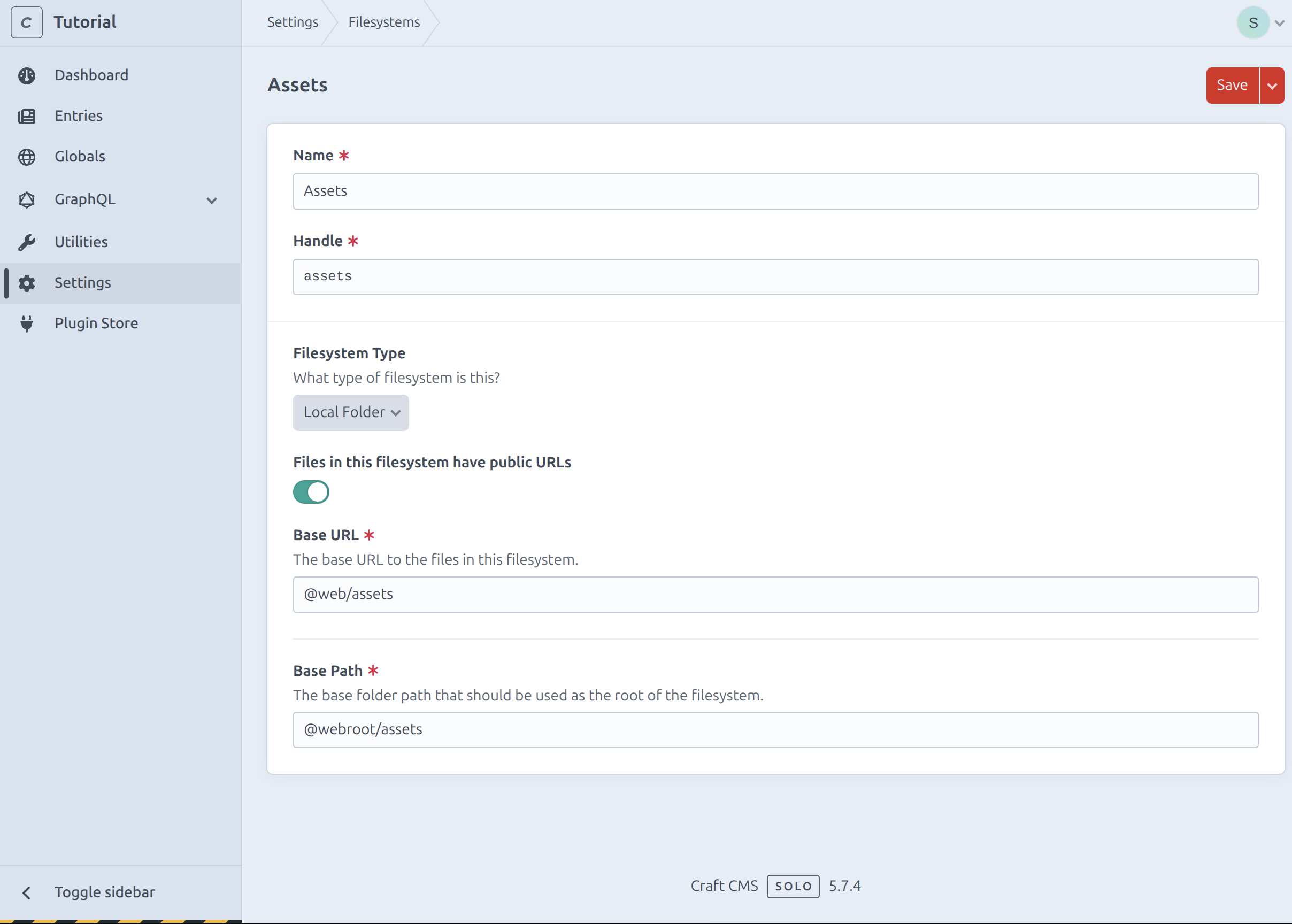
To be able to add asset fields we need to first create a filesystem and volume.
In Craft's sidebar navigation go to Settings → Filesystems and click New filesystem. Name it Assets and set the Base URL to @web/assets and the Base Path to @webroot/assets.
In Craft's sidebar navigation go to Settings → Assets and click New volume. Name it Assets and select the Asset filesystem and set Transform Subpath to transforms.

Transforms
To make sure images aren't too big we will create a few image transforms for different device sizes. In Craft's sidebar navigation go to Settings → Assets → Image Transforms and click New image transform. Name it Small and set the Width to 600 and the Height to 400.
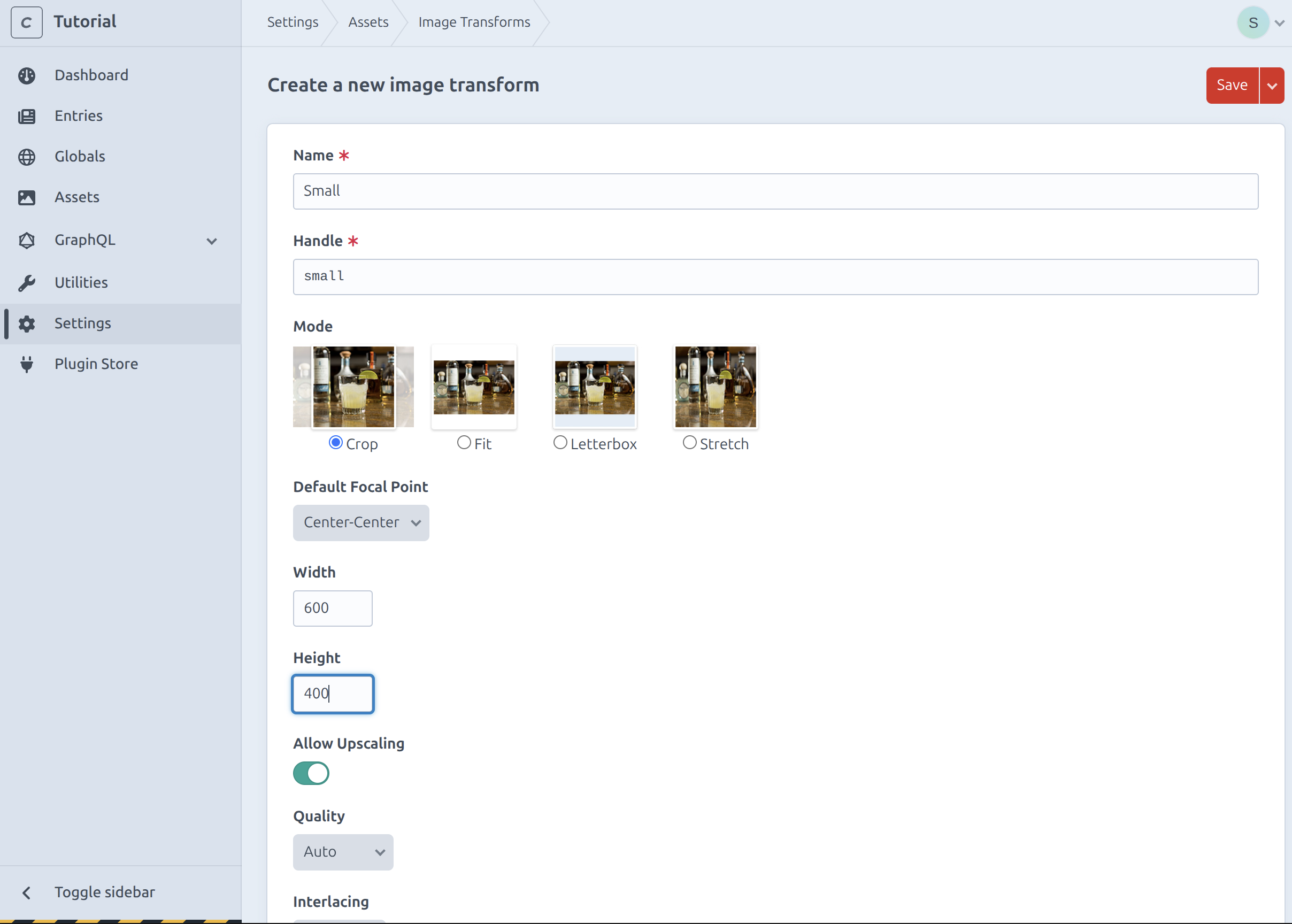
Add another transform named Medium and set the Width to 1500 and the Height to 1000.
GraphQL
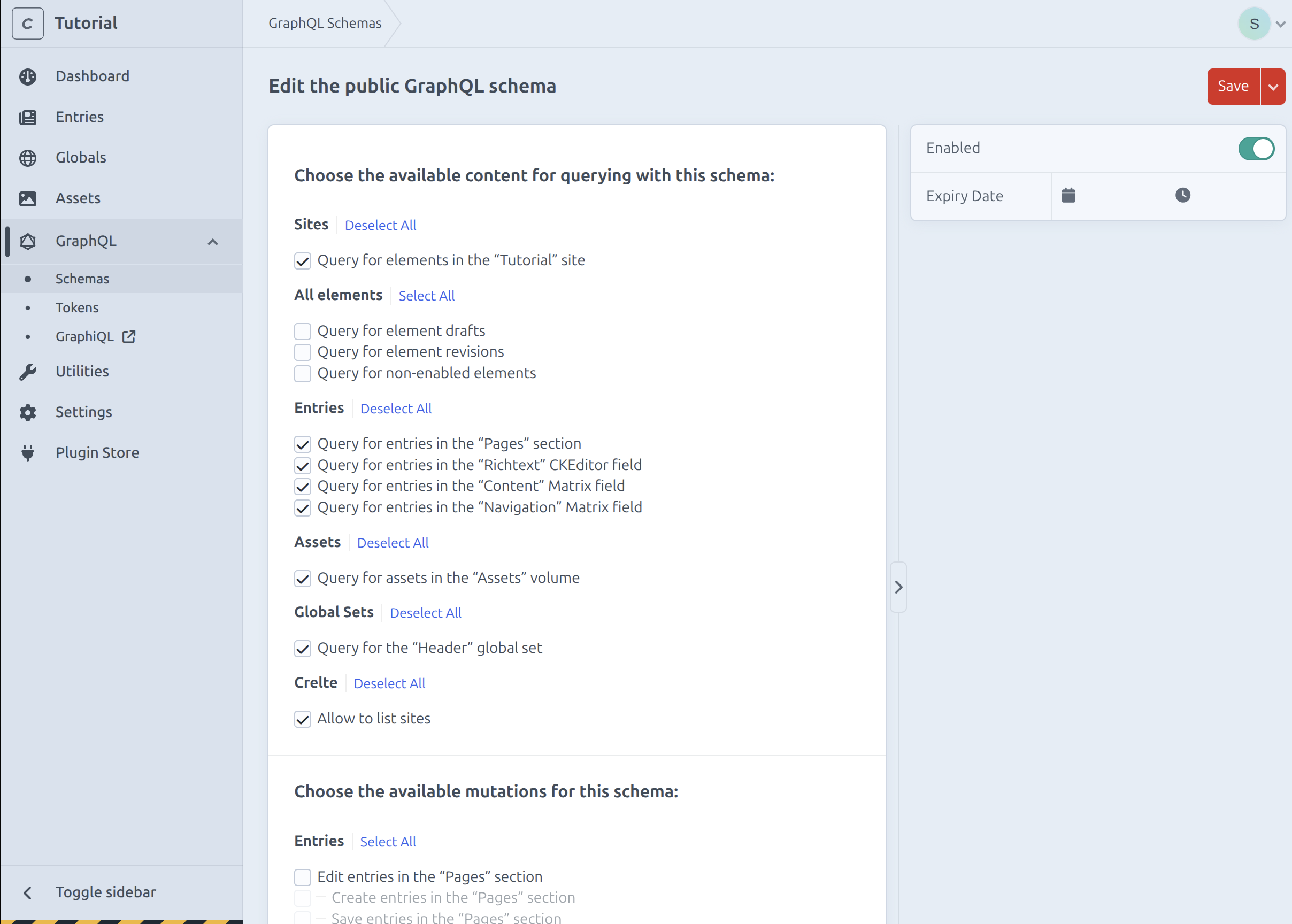
We need to enable the GraphQL API for the asset volume.
In Craft's sidebar navigation go to Settings → GraphQL → Endpoint Schema and select all checkboxes under Assets.
Content Matrix
Lets create the content matrix. In Craft's sidebar navigation go to Settings → Fields and click New field. Set the name to Content, the field type to Matrix and the view mode to As inline-editable blocks.
Text
Click Create to add a new entry type for the text block. Name it Text, remove the Title field and add a new field named Richtext. Set the field type to CKEditor and customize the formatting options according to your needs (e.g. allowing for numbered lists but not for superscript).
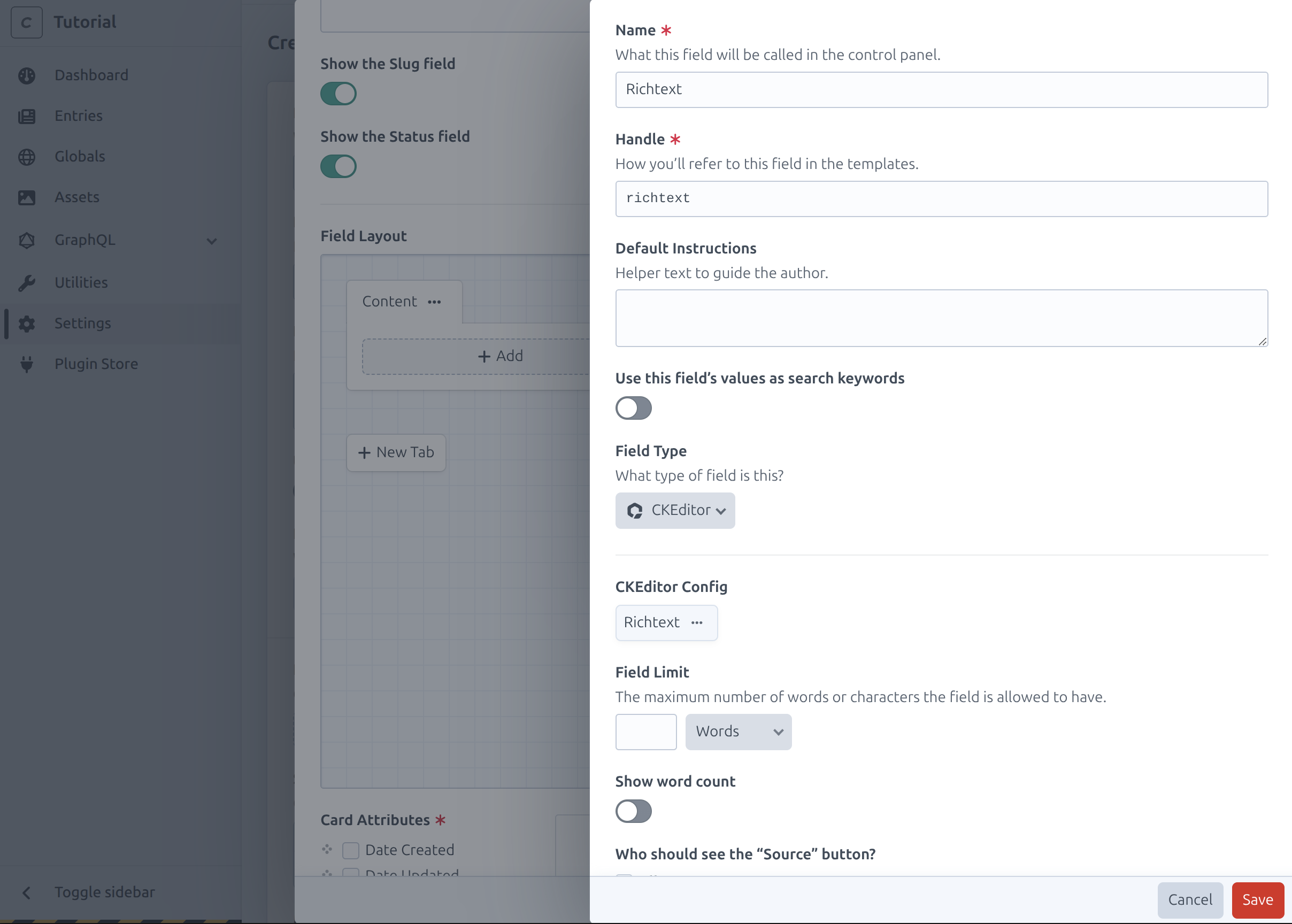
To make sure we only get HTML go to Advanced and set the GraphQL Mode to Raw content only.

Mark the field as required and save the entry type.
Images
Click Create to add a new entry type for the image block. Name it Images, remove the Title field and add a new field named Images. Set the field type to Assets.
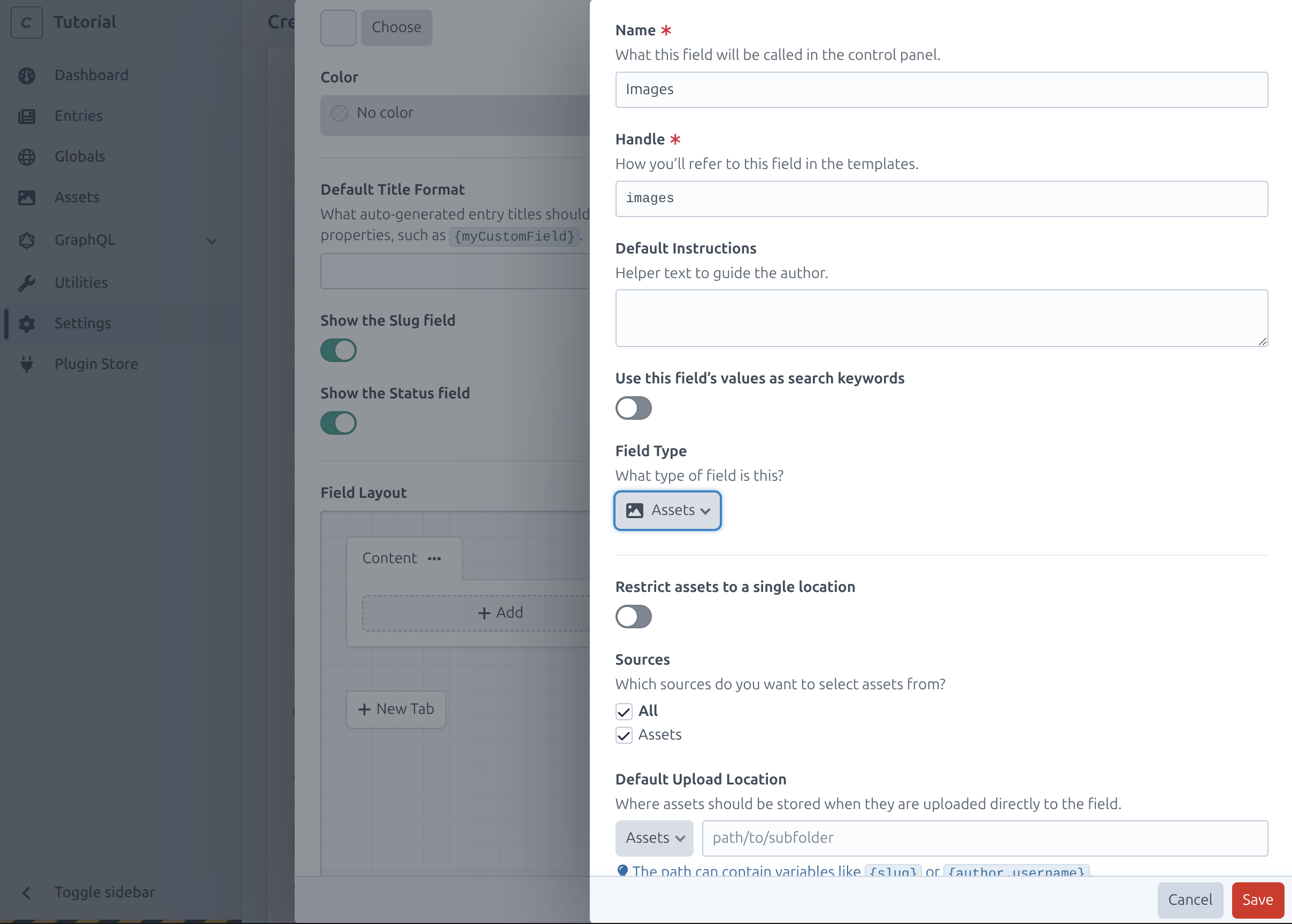
Restrict the allowed file types to Image.

Assign
After saving the Content field, in Craft's sidebar navigation go to Settings → Entry Types and open Page. Add the Content field to the Content tab and do the same for the Home entry type.